2. Authentication
MAC uses a role-based authentication system with JWT tokens, bcrypt password hashing, and a student/faculty registry for secure account provisioning.
2.1. User Roles
MAC supports three roles, each with distinct access levels:
Feature |
Student |
Faculty |
Admin |
Notes |
|---|---|---|---|---|
AI Chat |
✅ |
✅ |
✅ |
Multi-session, streaming, web search |
MBM Book (Notebooks) |
✅ |
✅ |
✅ |
25+ language kernels |
RAG (Document Chat) |
✅ |
✅ |
✅ |
Upload PDF/DOCX/TXT |
Doubts Forum |
✅ |
✅ |
✅ |
Post and answer questions |
File Sharing |
✅ |
✅ |
✅ |
Download shared files |
Voice Chat (STT + TTS) |
✅ |
✅ |
✅ |
Whisper STT + Veena TTS |
Admin Panel |
❌ |
❌ |
✅ |
User CRUD, quotas, feature flags |
Cluster Management |
❌ |
❌ |
✅ |
Worker node management |
2.2. Account Verification (First-Time Sign-Up)
New users must verify their identity using their Registration Number and Date of Birth before they can create an account.
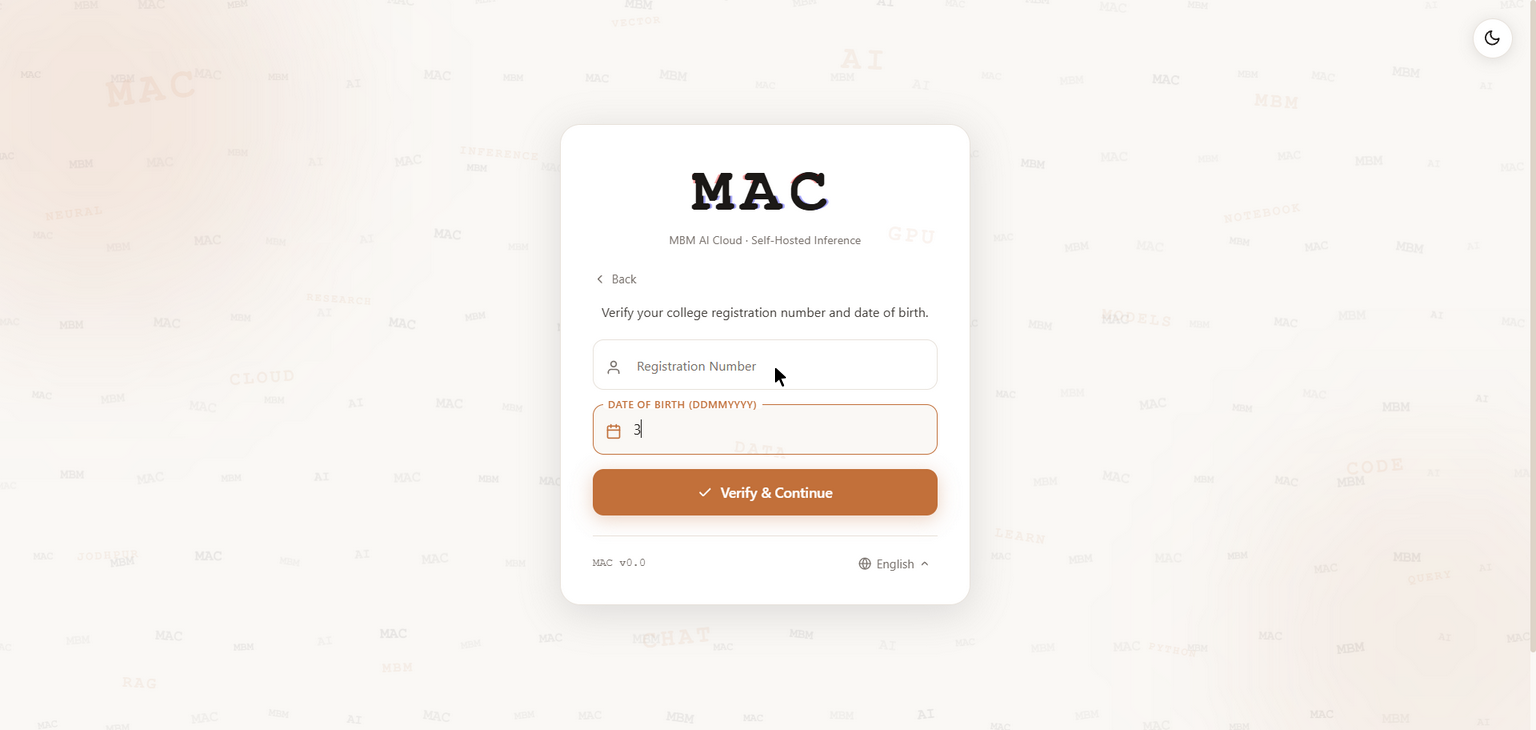
The verification page where new users enter their Registration Number and Date of Birth.
Verification Flow:
Navigate to the MAC login page at
http://<server-ip>/Click “First time? Verify with Reg. No. + DOB”
Enter your Registration Number (e.g.,
21CS045for students)Enter your Date of Birth in
DDMMYYYYformat (e.g.,15082003)Click “Verify & Continue”
If verification succeeds, your account is created with a temporary password
You will be prompted to set a new password on first login
Role |
Registration No. |
DOB (DDMMYYYY) |
|---|---|---|
Admin |
|
|
Faculty |
|
|
Student |
|
|
2.3. Login Process
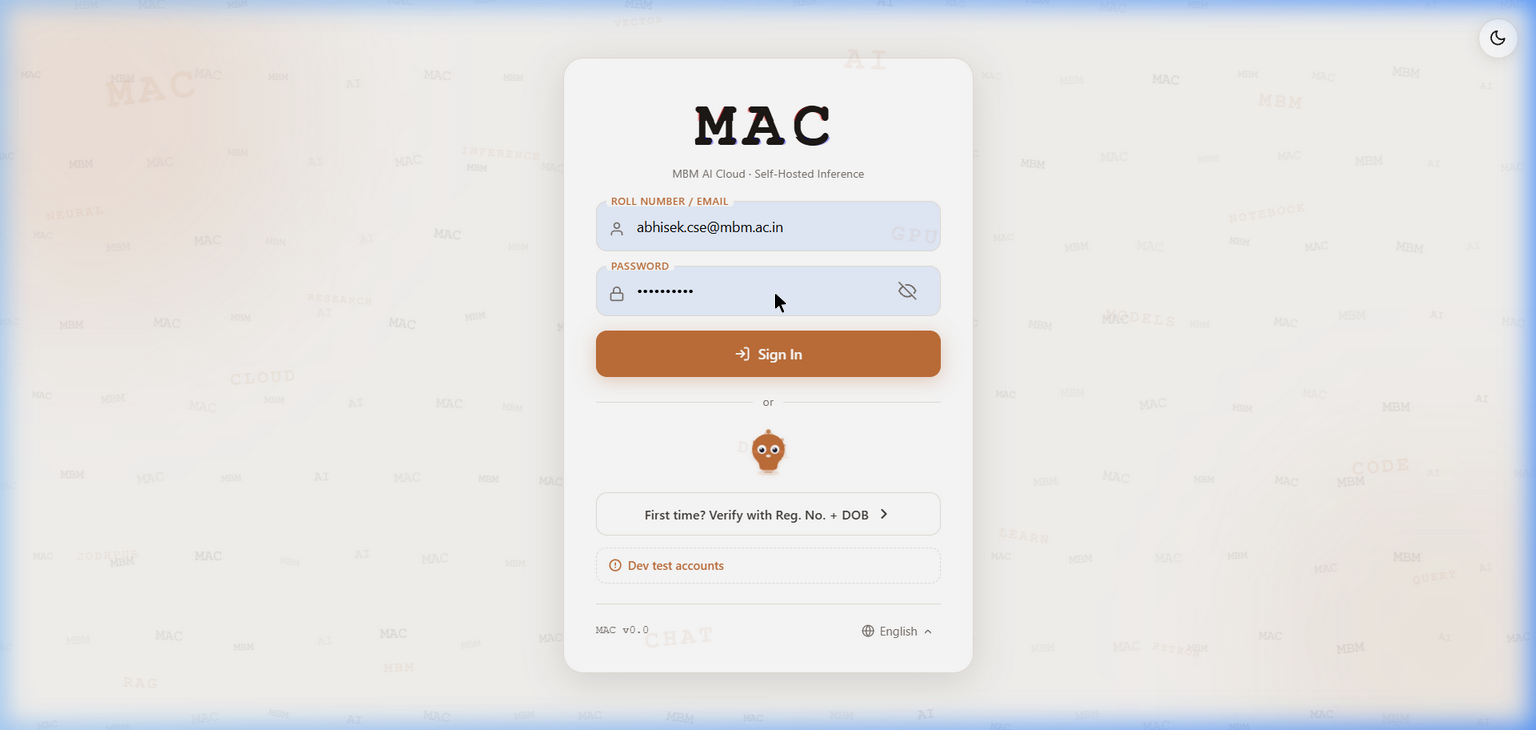
The MAC login page with the animated background, multi-language selector, and Sign In form.
To log in:
Open your browser and navigate to
http://<server-ip>/Enter your Roll Number / Email in the first field
Enter your Password in the second field
Click the “Sign In” button
On successful login, you will be redirected to the Dashboard
Tip
Use the language selector at the bottom of the login page to switch between 19 supported languages including English, Hindi, Rajasthani, Gujarati, and Urdu.
2.4. Multi-Language Support
MAC supports 19 languages for the user interface. The language can be changed from the login page using the language picker at the bottom:
English, Hindi, Rajasthani, Gujarati, Urdu
Bengali, Tamil, Telugu, Kannada, Malayalam
Marathi, Punjabi, Odia, Assamese
Sanskrit, Nepali, Sindhi, Maithili, Bodo
2.5. Password Security
MAC enforces the following password security measures:
bcrypt hashing – All passwords are hashed using bcrypt before storage
Forced password change – New accounts have
must_change_password=TrueAccount lockout – After repeated failed login attempts, the account is locked
JWT tokens – 24-hour access tokens with 30-day refresh tokens
Token blacklisting – Tokens are invalidated on logout via Redis
2.6. API Key Authentication
For programmatic access, MAC supports API key authentication:
curl -H "Authorization: Bearer mac_sk_live_<your-key>" \
    http://<server-ip>/api/query/chat \
    -d '{"messages": [{"role": "user", "content": "Hello"}]}'
API keys can be managed from the Dashboard (visible in the top-right corner) or from the Admin Panel under the API Keys tab.