3. Platform Features
MAC provides a comprehensive suite of AI-powered tools and academic utilities. This section provides an overview of every feature available on the platform.
3.1. AI Chat
The AI Chat is the primary interface for interacting with locally-hosted large language models. It supports multi-turn conversations with streaming responses.
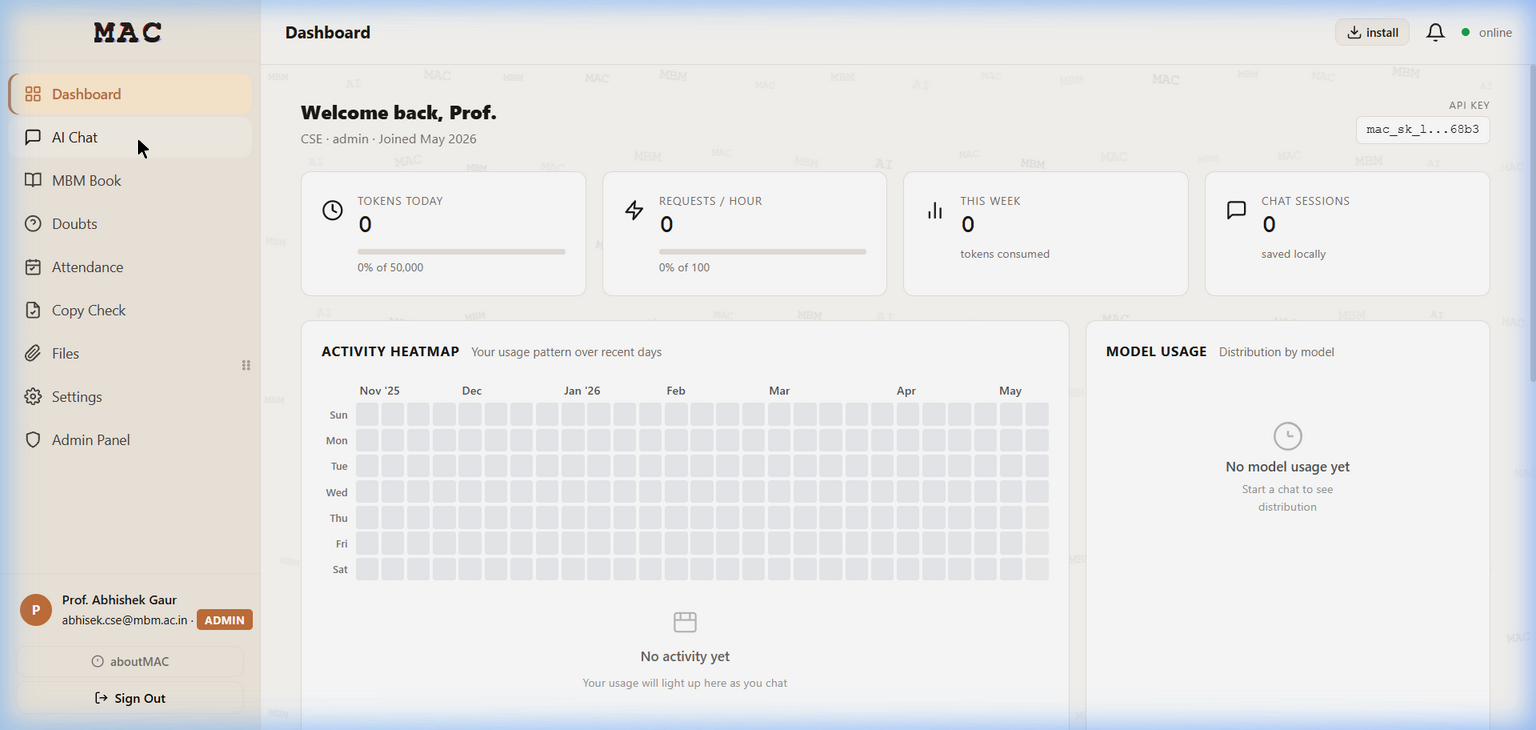
The AI Chat interface showing session management, model selector, and message input with web search, file attachment, and voice input options.
Key Capabilities:
Multi-session management – Create, rename, and switch between chat sessions
Streaming responses – Responses appear in real-time as the model generates them
Web search integration – Toggle web search to ground responses with live data via SearXNG
File attachment – Upload documents (PDF, DOCX, TXT) for context-aware responses
Voice input – Click the microphone icon for speech-to-text via Whisper
Text-to-speech – Listen to responses using the Veena TTS engine
Model selection – Choose between available models (Auto, Qwen2.5, Mistral, etc.)
Code highlighting – Code blocks are syntax-highlighted with copy buttons
Markdown rendering – Full Markdown support with Mermaid diagram rendering
How to Use:
Click “AI Chat” in the sidebar
Click “+ New” to start a new conversation session
Type your message in the “Message MAC…” input field
Toggle the globe icon for web search, or attach files with the paperclip icon
Press Enter or click the send button to submit
3.2. MBM Book (Cloud IDE & Notebooks)
MBM Book is a full-featured cloud IDE with a VS Code-powered Monaco editor. Each user gets their own isolated Docker container with multiple language runtimes.
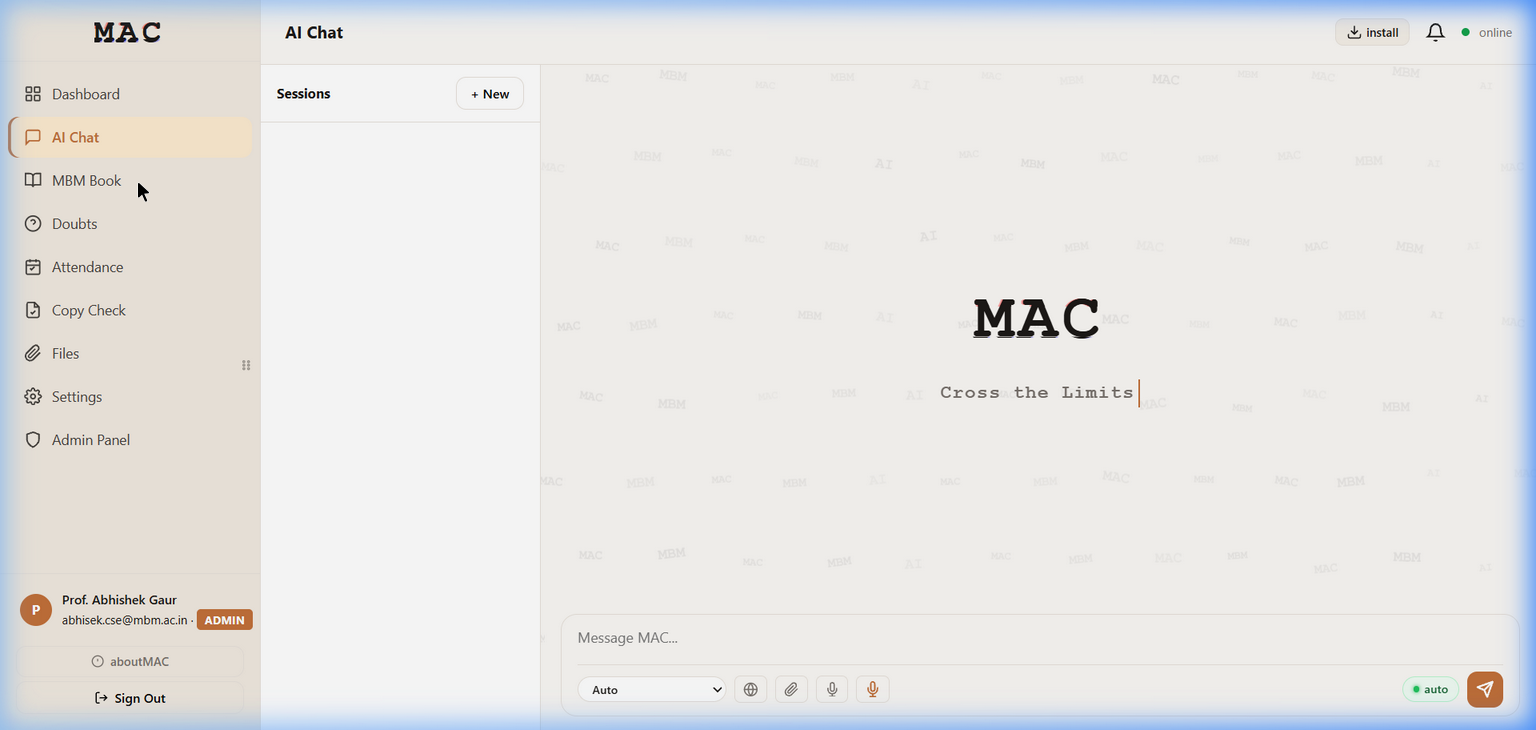
The MBM Book IDE with the MAC branding, session panel, and code editor area displaying the “Cross the Limits” tagline.
Features:
Monaco Editor – VS Code’s editing engine with syntax highlighting, IntelliSense, and multi-tab support
25+ language kernels – Python, JavaScript, TypeScript, R, Julia, Ruby, PHP, C, C++, Java, Go, Rust, C#, Kotlin, Scala, Swift, Bash, SQL, Lua, MATLAB/Octave, Haskell, Perl, Zig, HTML, and Markdown
Integrated terminal – Full PTY terminal with ANSI colour support
Resizable panels – Drag to resize file explorer, editor, and terminal
Fullscreen cells – Expand any code cell to fullscreen for focused editing
Live Markdown preview – Split-pane editing for Markdown cells with live preview
Keyboard Shortcuts:
Shortcut |
Action |
|---|---|
|
Execute current cell |
|
Blur/exit editor focus |
|
Save notebook |
Fullscreen button |
Toggle fullscreen for a cell |
3.3. RAG (Document-Aware AI Chat)
RAG (Retrieval-Augmented Generation) allows you to upload documents and have AI conversations grounded in their content.
How It Works:
Upload PDF, DOCX, or TXT files to a RAG collection
Documents are automatically chunked and embedded into the Qdrant vector database
When you chat, relevant document chunks are retrieved and provided as context
The AI generates responses informed by your documents
Supported File Formats:
PDF (
.pdf)Microsoft Word (
.docx)Plain text (
.txt)
3.4. Doubts Forum (Q&A)
The Doubts Forum is a student Q&A platform where students can post questions and receive answers from peers and faculty.
Features:
Post questions with tags and descriptions
Answer questions with upvoting
Faculty can provide authoritative answers
Search and filter questions by topic
3.5. File Sharing
Faculty and administrators can upload files for students to download.
Features:
Upload files with descriptions and metadata
Students can browse and download shared files
Supports all common file formats
File size quotas managed by the admin
3.6. Voice Chat (STT + TTS)
MAC supports voice interaction through:
Speech-to-Text (STT) – Powered by
faster-whisper(CPU-based)Text-to-Speech (TTS) – Powered by Piper TTS via
openedai-speech
Click the microphone icon in the AI Chat input area to start voice input. The platform transcribes your speech and sends it as a text message.
3.7. Multilingual Interface
The entire MAC interface supports 19 languages:
|
|
|
3.8. Theme System
MAC supports three visual themes:
Warm (default) – Warm white background with amber accents
Dark – Full dark mode for low-light environments
Light – Pure white theme
Themes can be changed from Settings in the sidebar. The selected theme persists
across sessions via localStorage.
3.9. Progressive Web App (PWA)
MAC can be installed as a Progressive Web App on any device:
Click the “Install” button in the top navigation bar
Follow your browser’s installation prompt
MAC will appear as a standalone application on your device
The PWA works offline for previously loaded pages thanks to the service worker.