4. Student Guide
This guide walks students through every feature available on the MAC platform.
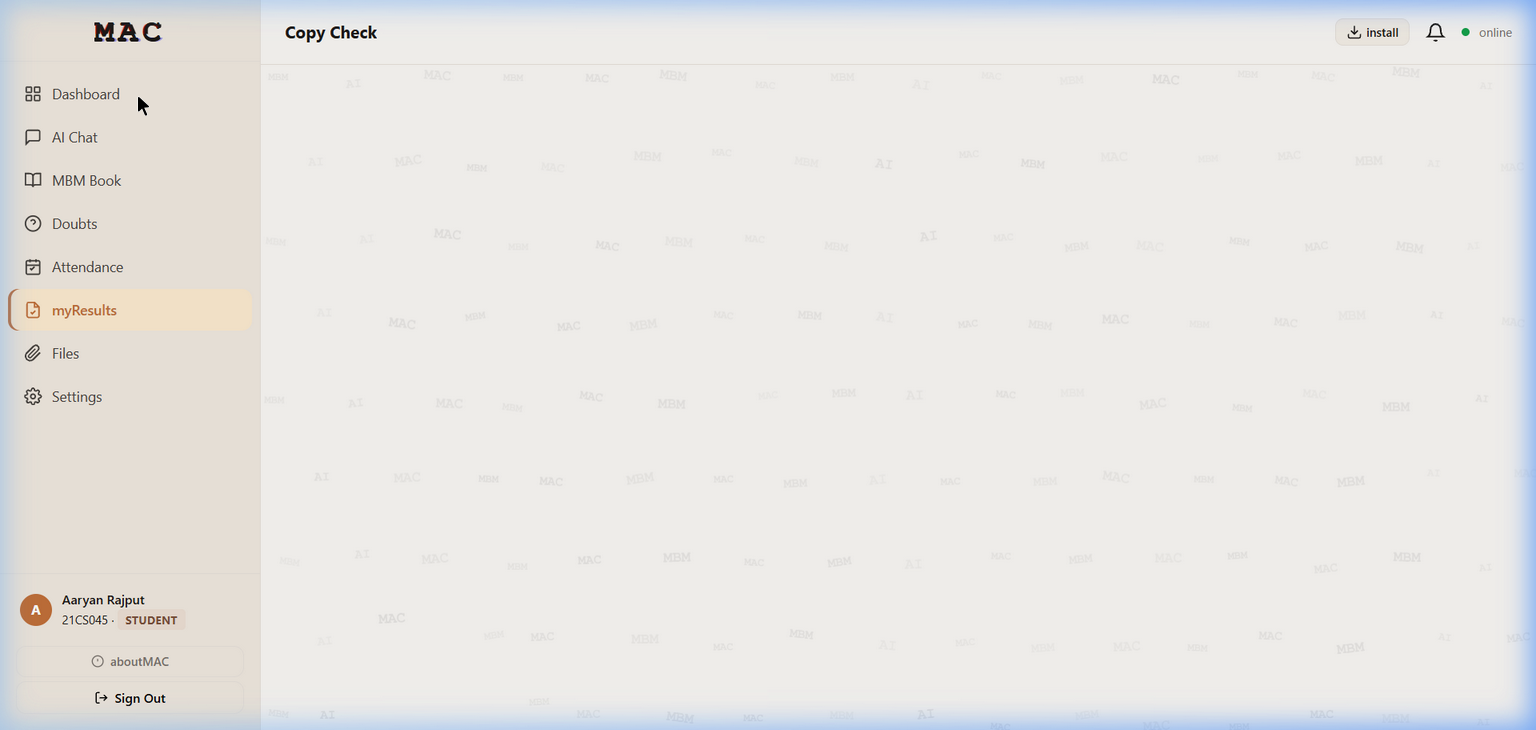
The student view showing the sidebar navigation with Dashboard, AI Chat, MBM Book, Doubts, myResults, Files, and Settings.
4.1. Logging In
First-Time Login (Account Verification):
Open
http://<server-ip>/in your browserClick “First time? Verify with Reg. No. + DOB”
Enter your Registration Number (e.g.,
21CS045)Enter your Date of Birth in
DDMMYYYYformat (e.g.,15082003)Click “Verify & Continue”
Set your password when prompted
Returning Login:
Enter your Roll Number in the “Roll Number / Email” field
Enter your password
Click “Sign In”
4.2. Dashboard
After logging in, the Dashboard provides an overview of your platform usage:
Tokens Today – Number of AI tokens consumed today
Requests / Hour – API requests made in the last hour
This Week – Total tokens consumed this week
Chat Sessions – Number of active chat sessions
Activity Heatmap – Visual calendar of your usage patterns
Model Usage – Distribution of which AI models you’ve used
4.3. Using AI Chat
Click “AI Chat” in the sidebar
Click “+ New” to create a new conversation
Type your question or prompt in the message field
Use the toolbar buttons for additional features:
Globe icon – Enable web search for grounded answers
Paperclip icon – Attach documents for context
Microphone icon – Use voice input
Model dropdown – Select a specific AI model (default: Auto)
Press Enter or click the send button
The AI response streams in real-time with syntax-highlighted code blocks
4.4. Using MBM Book (Notebooks)
MBM Book is your personal cloud coding environment.
Click “MBM Book” in the sidebar
Create a new notebook or open an existing one
Add code cells and select the programming language
Press Shift+Enter to execute a cell
View output directly below the cell
Use the fullscreen button to expand a cell for focused editing
Supported Languages:
Python, JavaScript, TypeScript, R, Julia, Ruby, PHP, C, C++, Java, Go, Rust, C#, Kotlin, Scala, Swift, Bash, SQL, Lua, Octave, Haskell, Perl, and more.
4.5. Using the Doubts Forum
Click “Doubts” in the sidebar
Browse existing questions or click to post a new one
Add tags and a detailed description
View and upvote answers from peers and faculty
4.7. Changing Settings
Click “Settings” in the sidebar
Available settings include:
Theme – Switch between Warm, Dark, and Light themes
Language – Choose from 19 interface languages
Sidebar position – Dock the sidebar to the left or right
Compact mode – Toggle compact sidebar layout
4.8. Installing as PWA
Click the “Install” button in the top-right corner of the page header
Follow your browser’s installation prompt
MAC will appear as a standalone app on your desktop or home screen
You can use MAC offline for previously loaded content